How to Remove Barcodes from Documents

How to Remove Barcodes from Documents

Removing sensitive and private data from documents is often referred to as Redaction.  For scanning applications, that involves the removal of both the image data, and the underlying text, or Image over Text, often found in OCR'd PDF files.  This article provides an overview of how to set up the Privacy removal of Barcodes.

ImageRamp has two offerings to accomplish redactions of barcodes and content.  ImageRamp Batch operates as a background folder watching tool, while ImageRamp Composer (Privacy Edition) provides a more visual tool to automatically and manually redact sensitive content.  Both tools use comprehensive regular expression processor to allow for more complex rules on Image and text based PDF files. 

Using ImageRamp Composer Privacy Edition to perform Barcode Redactions

ImageRamp Composer is an interactive tool combining interactive redactions with automated redactions. 

Use the ImageRamp Privacy Inspector to help

identify barcodes and other sensitive data to

remove from your documents. 

Tagged patterns and barcodes are displayed on

each page they are found, to help identify sensitive

data in your documents.

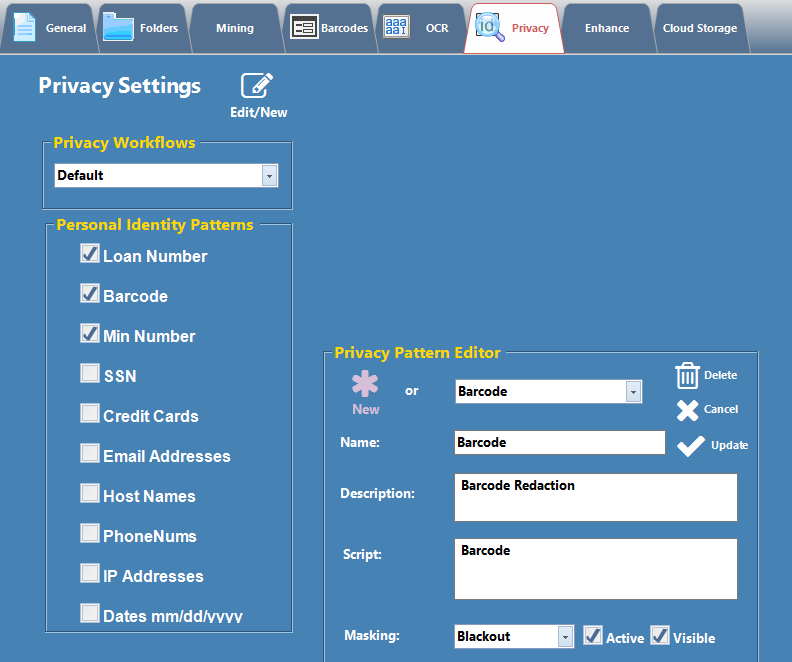
The Privacy settings allow for the definition of

regex scripts or barcodes types, length, or

content, to help determine sensitive data

types to remove from documents.

Using ImageRamp Batch to perform Barcode Redactions

ImageRamp version 9.5 introduced the ability to permanently remove barcodes from documents along with removing other redaction patterns, like SSN or Credit Cards or unique ID numbers.  To enable Barcode redaction, simply create a new Privacy Pattern with the label Barcode and the script "Barcode".  This will instruct the platform to use whatever settings are found in the Barcodes settings tab to help identify barcodes.  This includes filtering by the following:

  • Barcode Type
  • Minimum or Maximum length
  • Regular expression script
  • Contains keywords
  • and other filters

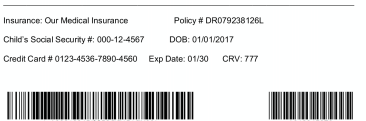
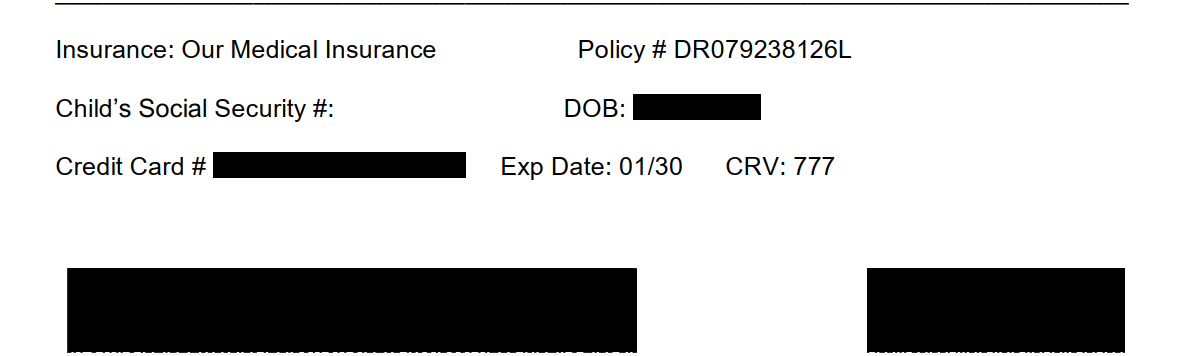
Redaction of Credit Card, SSN, Date of Birth, and Barcodes. 

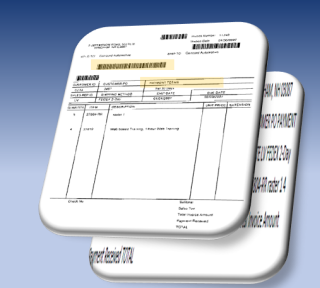
Barcodes can be redacted along with other defined character strings using the privacy settings configurator.  Credit card data along with the childs date were blackout redacted while the SSN was whiteout redacted. 

In our source document, we have an insurance form containing sensitive

data stored within the barcode

Once redacted, the data is no longer available for unwanted discovery.
How to automate Document Scanning and Capture

How to automate Document Scanning and Capture

Unattended processing is what ImageRamp is all about.  Folders configured to be watched by the platform are frequently checked for the existance of new documents which are processed to help get the most out of their value.  You can automate many functions often found to be labor intensive, with background services polling a series of watched folders.

Document Automation Functionality

ImageRamp Provides a powerful functionality through a simple everyday interface for all types of users.  Multiple disciplines can take advantage of ImageRamp as it runs as an enterprise tool to process documents for various disciplines within your organization. 

Your Benefits with ImageRamp

Content Extraction and Mining

Use existing content and advanced Barcode or Zone OCR extraction to gather information need for downstream processes.  Our confidence based platform even rejects to quality control processes if OCR or barcode confidence is not sufficient. 

Automated File Splitting

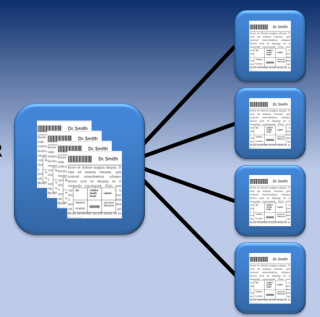
A large single file can be split and renamed with information from barcodes and content.

Barcode recognition and OCR text mining are powerful, proven technologies used in file splitting and many more capture functions.

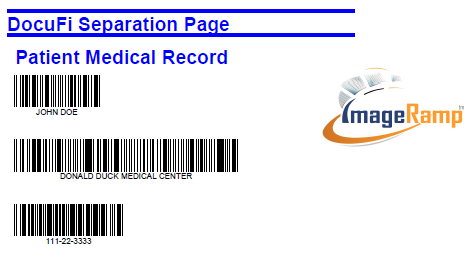
Barcode separation sheets can also be used to split files.

Automated File Naming

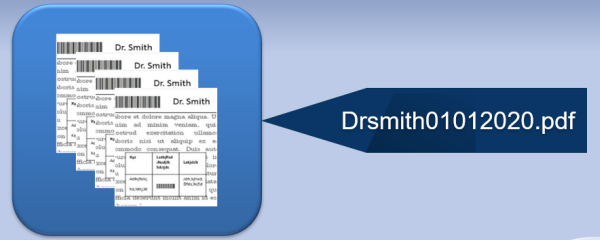
Automatically Name documents to extracted content including barcodes, OCR mined text, or system data.

Automated Bookmarking

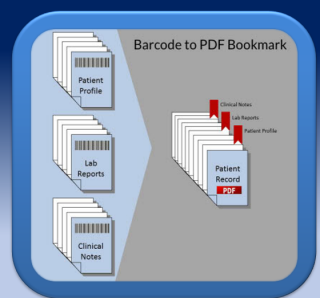
Create PDF bookmarks based on extracted information or create document stamps using any text or string. For medical and legal fields Bates Numbering provides page stamping and/or time and date stamping.

File Clean-up and Enhancement

Cleaning documents increases OCR accuracy.  We go beyond the basics and use advanced enhancement technology and methods developed from our raster editing software.

Automated Database Indexing

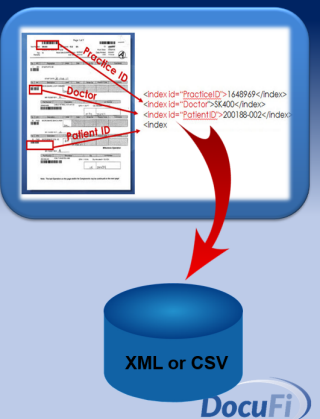
Use barcode content, OCR mined text, dates and more for indexing.  Captured index data can be output as XML or CSV files for easy integration into content management, EMR, EDR or search and retrieval systems.  Or directly save to Microsoft SQL Server or other database platforms.

How to Add Barcodes to Documents
Download ImageRamp Software

Free

Download our most popular solution for your document processing needs.  You'll get a free version of ImageRamp Composer, a trial of ImageRamp Batch plus several fully functioning Free tools to produce OCR'd PDF, Create Barcode Separation Sheets, assemble PDF files and Validate barcode splits.

Our Customers

Free Barcode Scan Separator

ImageRamp document capture and indexing softwareThe ImageRamptm Scan Separator, is a free tool, included in the ImageRamp 9.x Series download.  It is free to use to help you create barcode separation sheets that can be used during batch folder processing.  Use barcode cover sheets to route, index, split and name your documents. Easily automate your common document processing tasks with this simple batch separation creator. Whether you are creating batch scans of invoices, patient records, claim records, or financial documents, Scan Separator can create cover sheets or separator pages to help accelerate documents into your workflows. It is simple to install and use in your environment with ImageRamp Batch.

Easily:

  • Utilize barcodes to index, route, rename and split files
  • Customize fields names
  • Customize drop-down lists for fast, accurate data entry
  • Use optional onscreen keyboard
  • Produce PDF files for easy printing as compatible cover sheets


Simple-to-Use Cover Sheet Creation

Easy Set-up

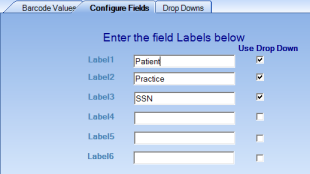
To set up the application for the first time, just label the barcode fields and create drop-down values if desired.   

Step 1:  Create the Barcode Labels


 Create Barcodes for Scan Separation Pages


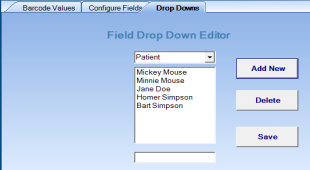
Step 2:  Create Drop-Down Values


 Create your own standard drop down menu options


Produce Adobe PDF Scan Separation Files

Now you can create your own separator sheets using the Barcode Value screen by typing the values or clicking on the down arrow to select from the pre-entered values. Click the Create Button and your sheet is available as a PDF file to print and/or save.create pdf barcoded scan separation files


Now you can Introduce Barcode-Driven Batch Scanning to your Document Capture

split at barcodes with cover sheets

With barcodes, you can automate the splitting, naming, workflow and destination path of your documents. With today's intelligent data capture systems like ImageRamp and low-cost, high-quality scanners; you have the flexibility to use standard barcodes in many ways, from splitting the files to routing and indexing. Here are some of the more common practical uses of barcodes.

  • Split at Barcodes – Barcode enabled capture tools can search for barcodes in a scan stack and create new documents when a new or common barcode is found. New invoice numbers, patient records, repair orders or any other classification can be used allowing you to scan an entire stack of documents in a single pass. In some systems you can even ignore barcodes unless they have a specific splitting text identified, bypassing other unwanted barcode strings.
  • Bookmark at Barcodes - Instead of splitting at barcodes, barcodes can also be used to insert bookmarks in output PDF files. This option lets you keep a stack of scanned documents as one file, but add bookmarks for easy navigation through the file.
  • Classify Documents - Barcodes help identify the type of documents being processed and can be used to select the appropriate processes for a specific document type. Some systems will look at the content of the barcodes to determine the procedures to implement next.
  • Routing Files - Use barcode strings to determine or set the target path (or route) for your scanned documents within your computer's file system. Automatically create folders and subfolders based on the barcode values contained in your document sets, thus providing an automated way of storing and folder classifying your documents.
  • Indexing Metadata – Perhaps the most common use of barcodes is to contain metadata or indexing information intended for document management systems. Some approaches will have a key identifier that is matched up against data already indexed to associate a document set with the appropriate record or folder in the database.
  • Name Files - Use barcodes along with other system or document variables to create your output file names for scanned documents. 

 Contact us at sales@docufi.com for more details.

How to configure Fujitsu Scansnap scanner with ImageRamp
Integrating ImageRamp with Fujitsu Scanners

You can easily configure ImageRamp Batch and ImageRamp PDF Composer to work directly with Fujitsu's hugely popular ScanSnap scanners. ImageRamp is configured for use with the Fujitsu ScanSnap Manager, the scanner's main interface, with no additional user actions required. Shortcut buttons let users save their settings and destinations for easy selection right from the touch screen. After installation and setup, ImageRamp is now available to use with the ScanSnap Manager.

For ImageRamp Batch users, ScanSnap is configured to scan to a specific folder at the touch of a button. Once files are scanned to the folder, ImageRamp Batch can automatically process (or watch) the files for those profiles configured for watched folders or processed on user demand according to the selected profile's setting.

With ImageRamp PDF Composer use ScanSnap scanners with the touch of a button. After installation and setup, ScanSnap Manager automatically launches the scanned document into ImageRamp PDF Composer.

Setting up ScanSnap Profiles

Use the Edit button located in the ScanSnap Home page, located in the upper right corner to configure a new or existing button.  This will display the more detailed page for the actions to take with this button
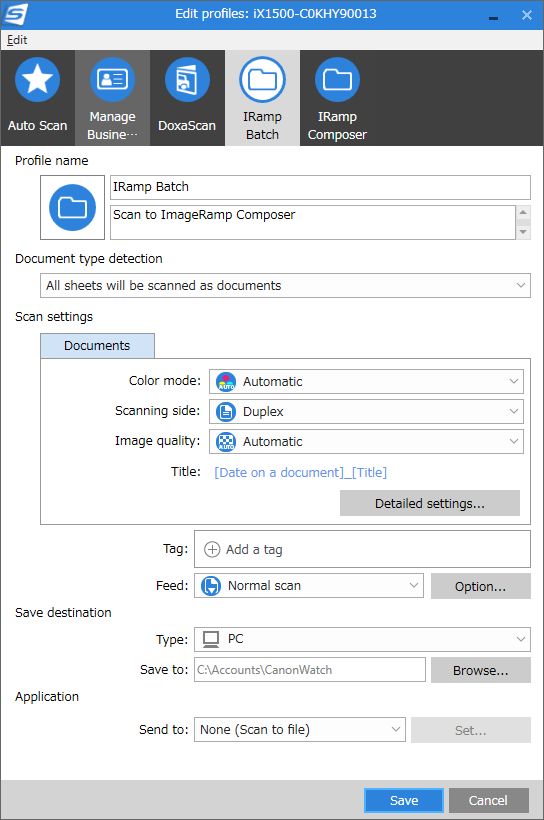

Configure the document destination path along with other key parameters such as format, duplex/simplex, resolution, and other settings. 

Learn more at our main site Docufi.com